![eQuip Logo on White-1.png]](https://help.assetworksusa.com/hs-fs/hubfs/eQuip%20Logo%20on%20White-1.png?height=50&name=eQuip%20Logo%20on%20White-1.png)
Importing Data In eQuip
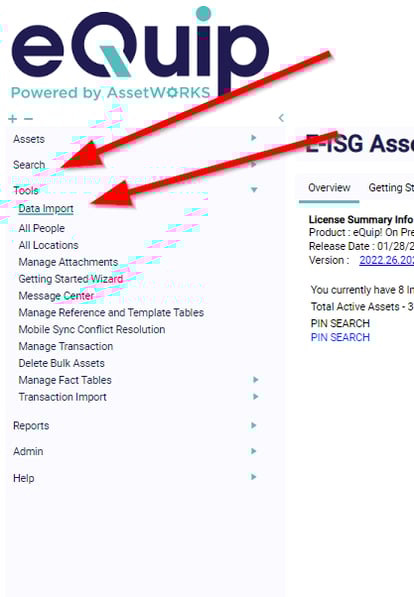
To import data into the system, you will first need to access the Data Importer
- Go to TOOLS>Data Import
-
- Note: The first time a user accesses the Data Importer, it may be blocked by the pop-up blocker
Importing Sites
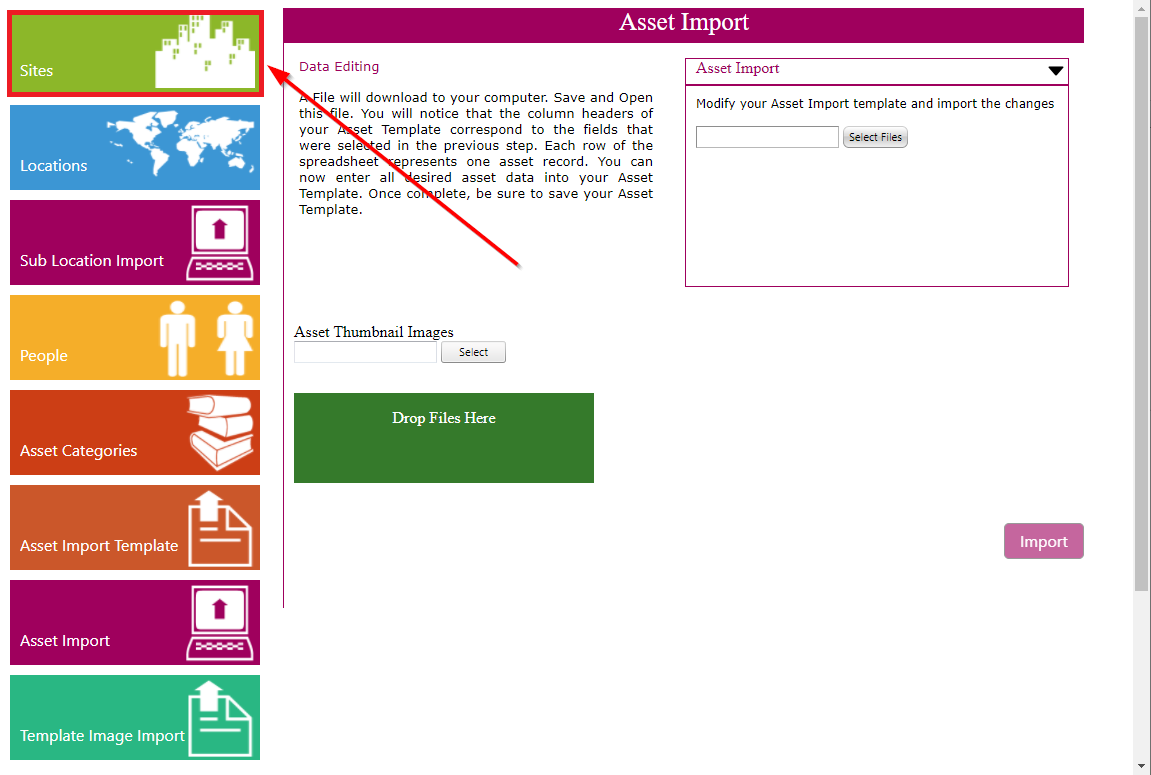
- Choose Sites
Entering new sites manually:
- Choose Add New Site

- Enter Site Name
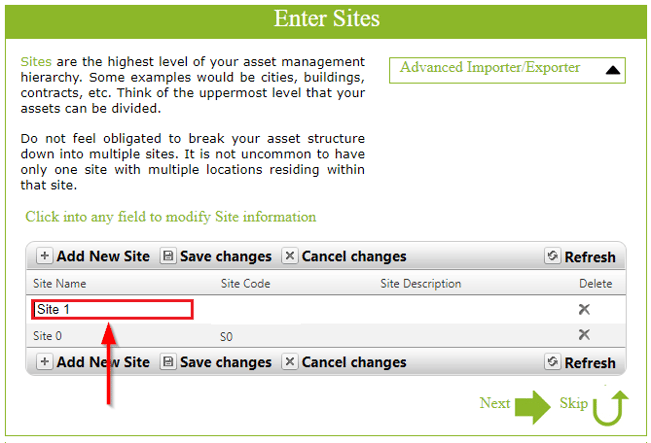
- Enter the Site Code (An abbreviation of the site name *Required*)
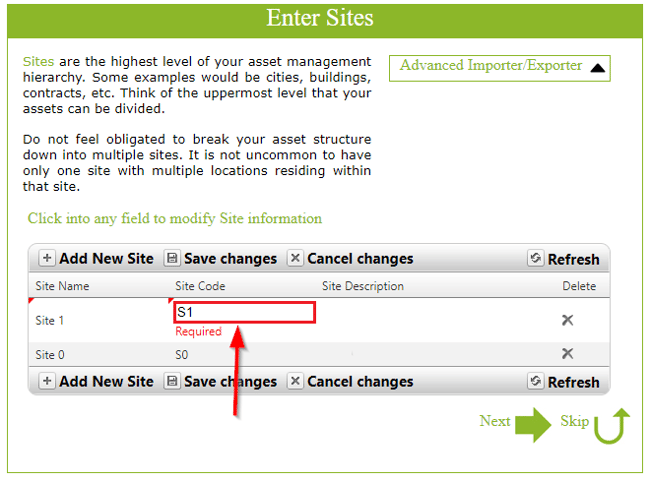
- Enter the Site Description (optional)
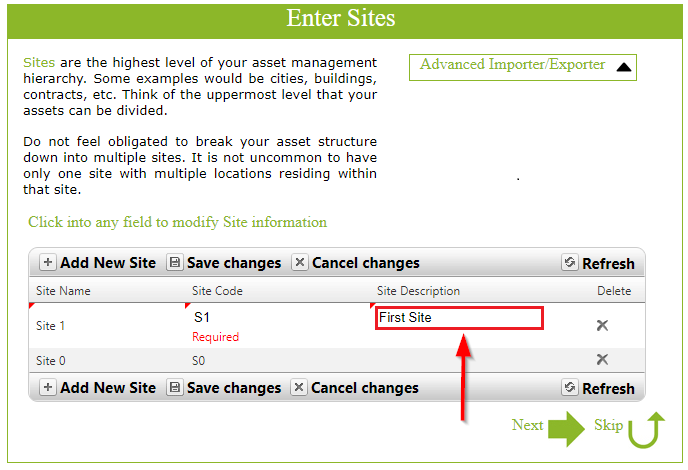
- The red arrows in the upper left-hand corner of each field indicate that you have not saved the changes that you made
-
- Choose Save Changes
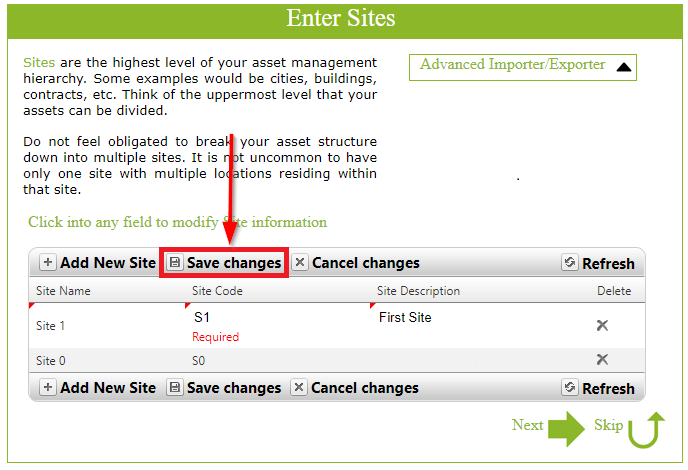
- Choose Save Changes
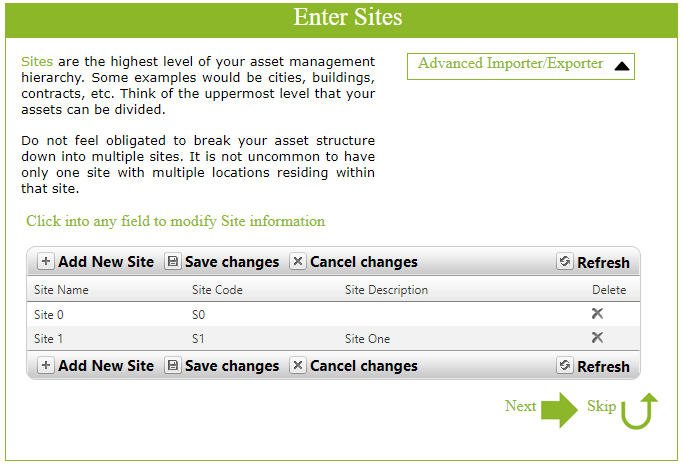
- The new site is now saved in eQuip
It is also possible to import sites in bulk
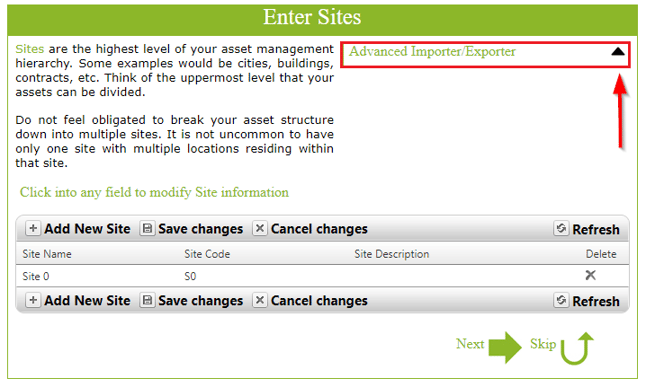
- Choose Advanced Importer/Exporter
-
- Choose Export
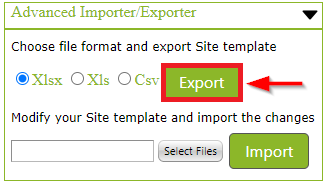
- Choose Export
-
- A template will download to your Downloads folder
-
-
- Choose the link in the lower left-hand corner of the window
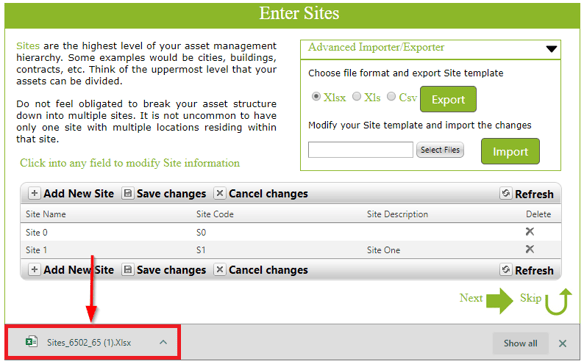
- Choose the link in the lower left-hand corner of the window
-
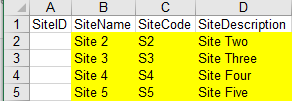
- Populate the cells that are highlighted below in the template
-
- SiteID (leave blank)
- Site Name (required)
- Site Code (required)
-
- Site Description (optional)
- Save the template and close it
- Choose Select File
-
- Locate the file in your Downloads folder
-
- Choose Open
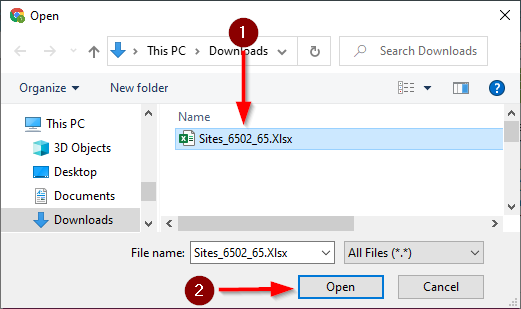
- Choose Open
-
- Choose Import
- You will receive a success message
-
- The new sites now exist in eQuip
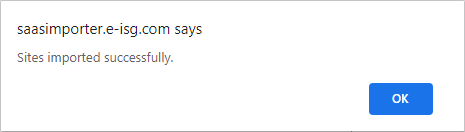
- The new sites now exist in eQuip
Importing Locations
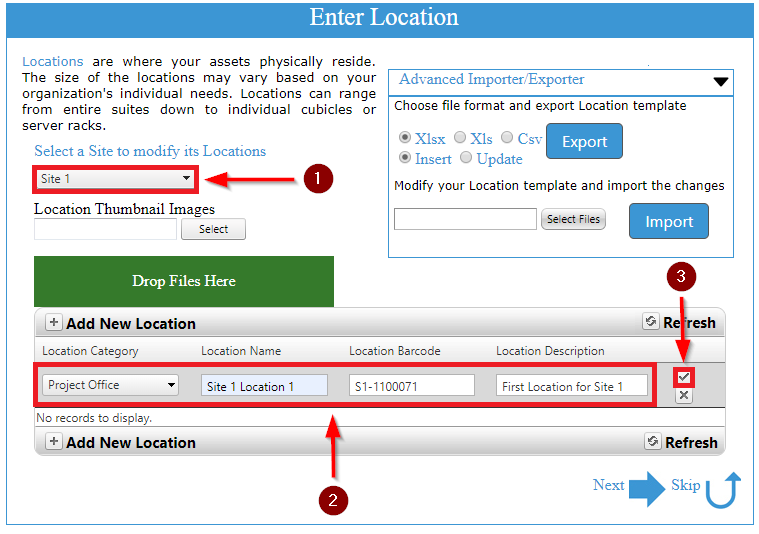
- Choose Locations
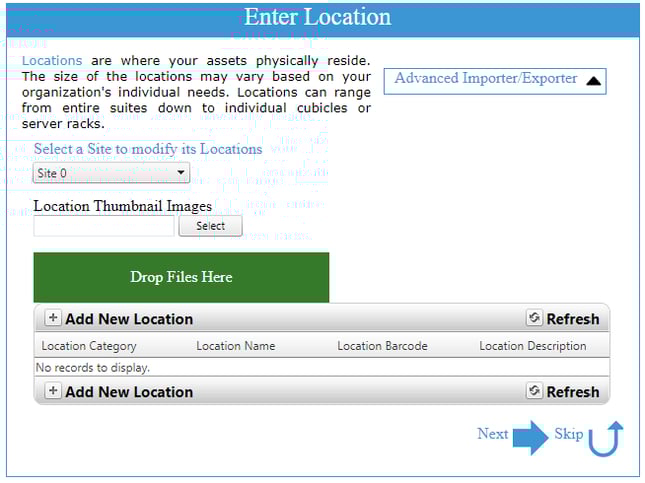
- Choose Add New Location
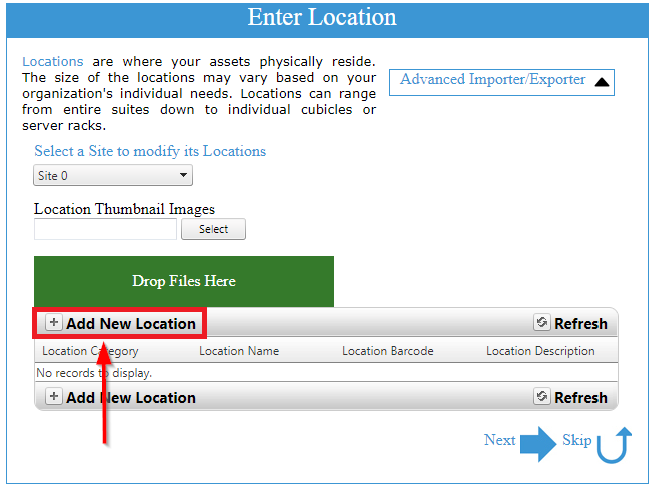
- Choose the site that you are creating the location under from the dropdown
-
- Enter values for the following fields:
-
-
- Location Category (required/choose a value from the dropdown list)
- Location Name (required/manually)
- Location Barcode (required/generates automatically)
-
-
-
- Location Description (optional/enter manually)
-
-
- Choose the check mark to save the location information
-
-
- The location is now saved in eQuip
-
It is also possible to import locations in bulk
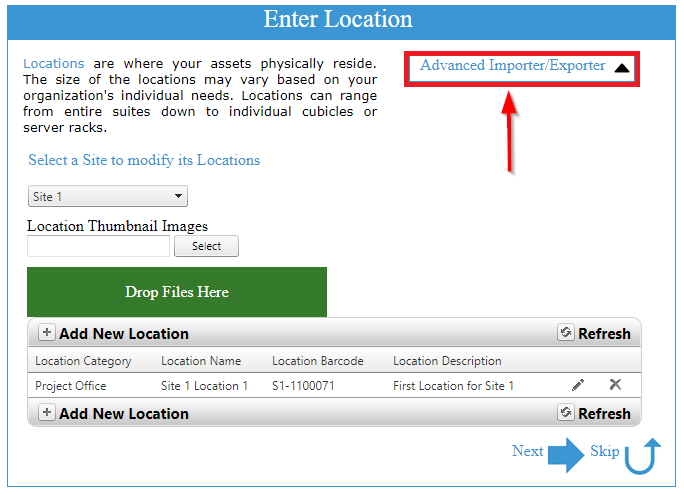
- Choose Advanced Importer/Exporter
- Choose Export
- A template will download to your Downloads folder
-
- Choose the link in the lower left-hand corner of the window
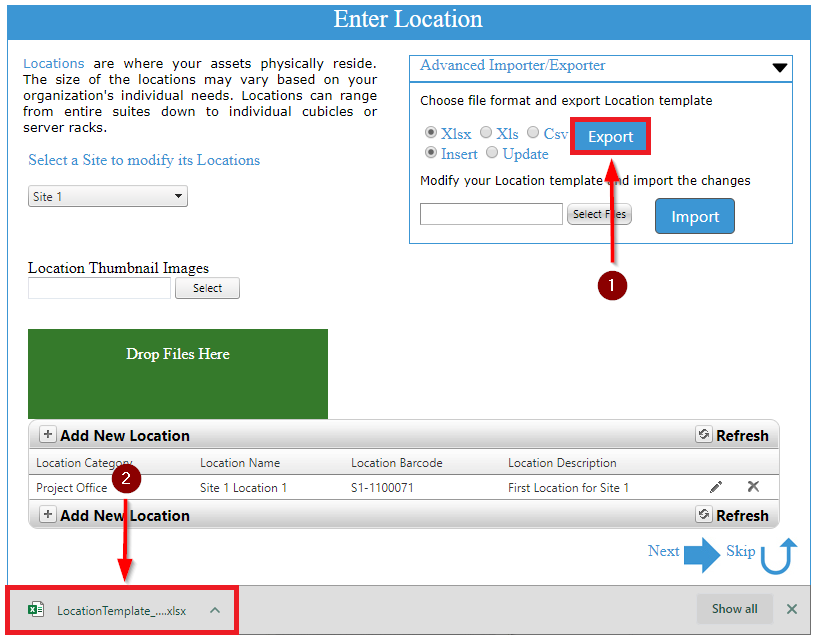
- Choose the link in the lower left-hand corner of the window
- Populate the cells that are highlighted below in the template
-
- Site (required)
- Location Category (required)
- Location Name (required)
- Description (optional)
- Save and close the template

- Choose Select Files
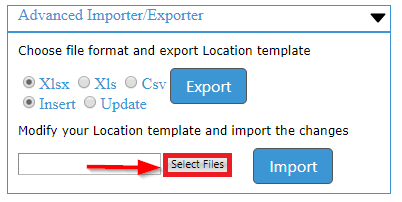
- Locate the import template in your Downloads folder
-
- Choose Open
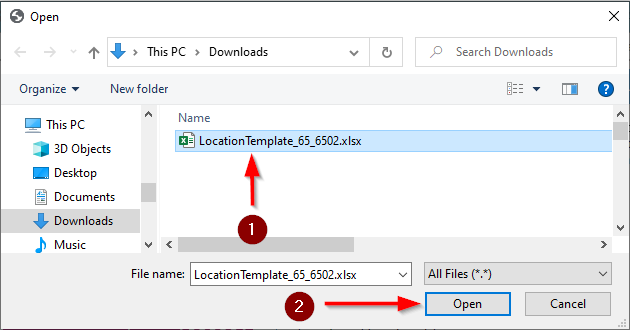
- Choose Open
- Choose Import
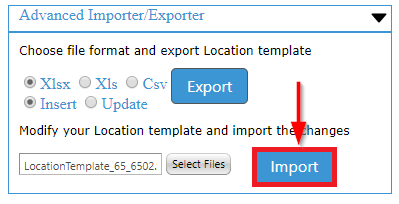
-
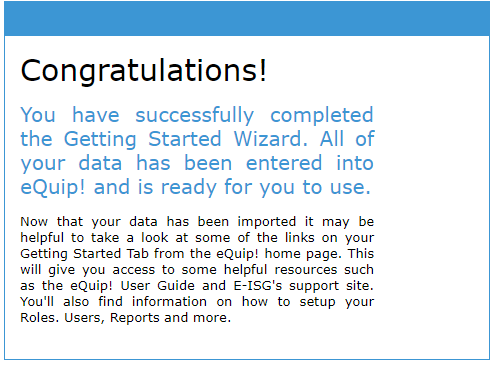
- You will receive a success message
- The locations now exist in eQuip
Importing Sublocations
- Choose the Site that you want to create the Sub Location under
- Choose the Location that you want to create the Sub Location under
- Chose Add New Sub Location
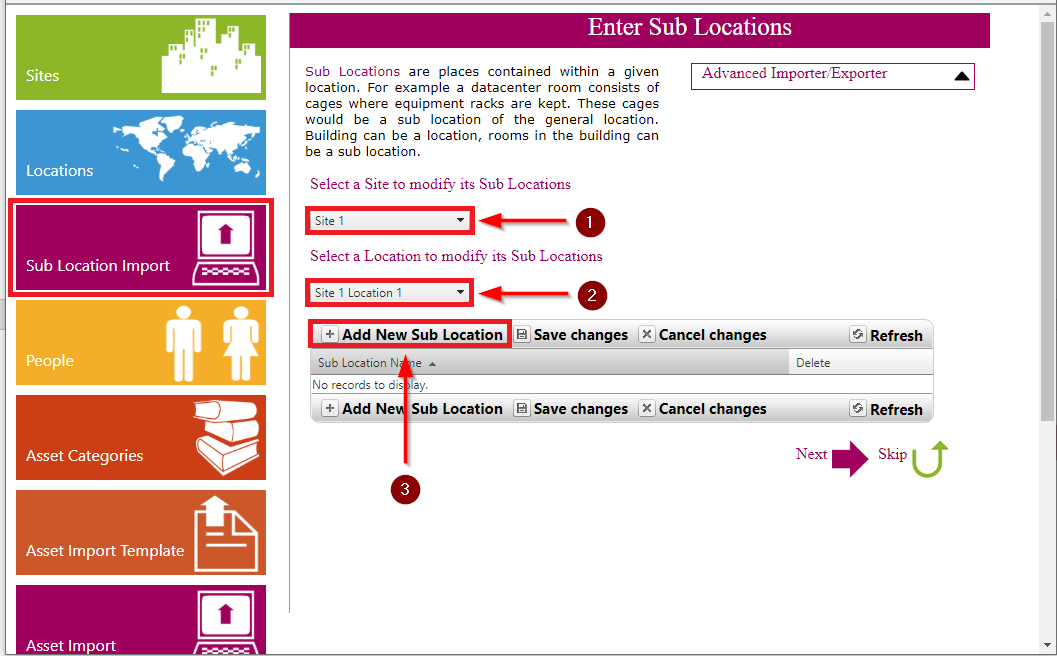
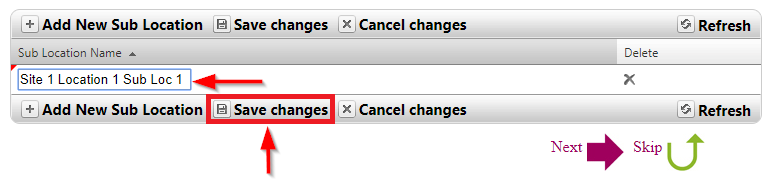
- Enter a name for the Sub Location
-
- Choose Save Changes
-
- The Sub Location now exists in eQuip
It is also possible to import sublocations in bulk
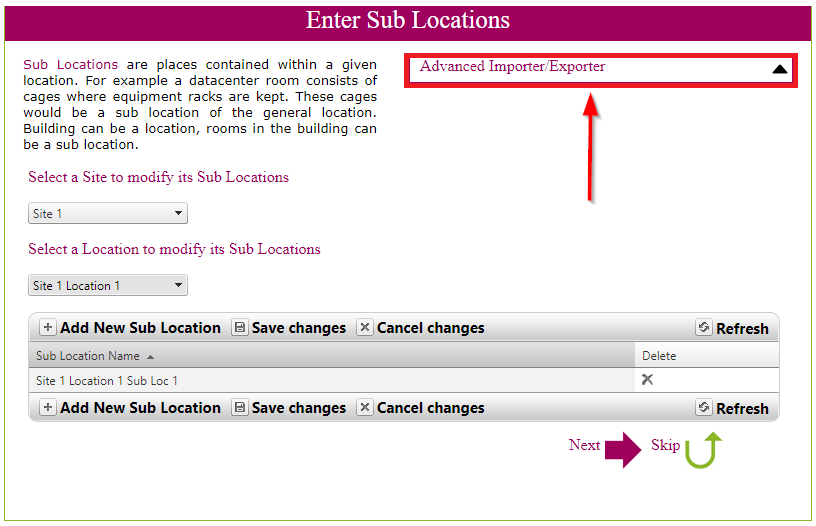
- Choose Advanced Importer/Exporter
- Choose Export
-
- Choose the link in the lower left-hand corner of the window
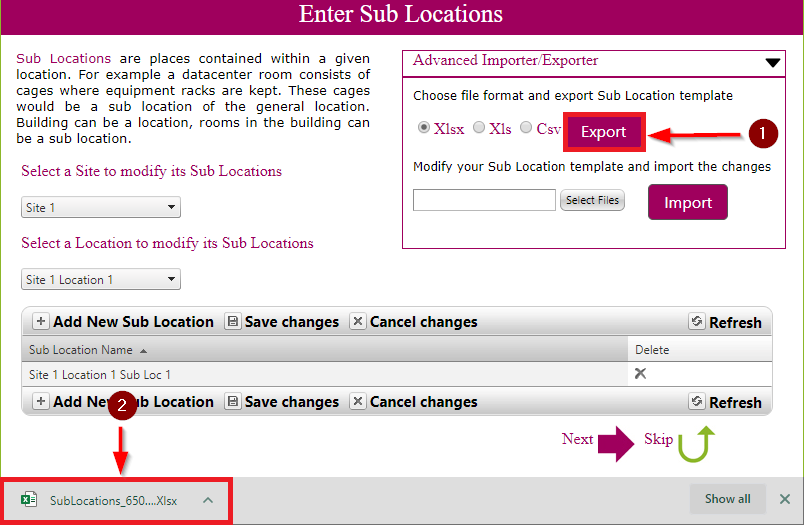
- Choose the link in the lower left-hand corner of the window
- Populate the cells that are highlighted below in the template
-
- SiteName
-
- LocationName
- SubLocationName
- Save and close the template

- Choose Select Files
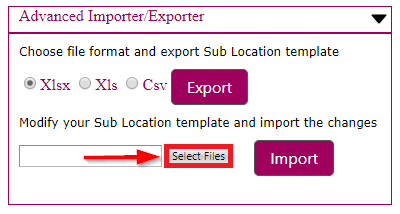
- Locate the import template in your Downloads folder
-
- Choose Open
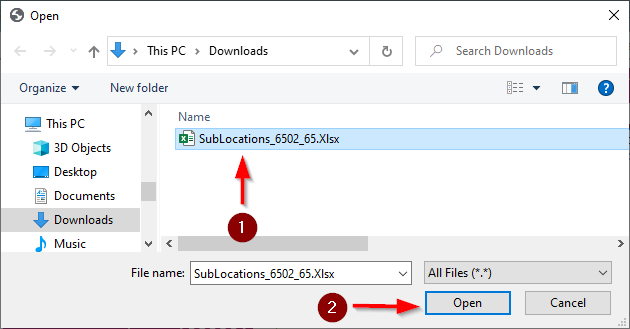
- Choose Open
- Choose Import
-
- The sub locations now exist in eQuip
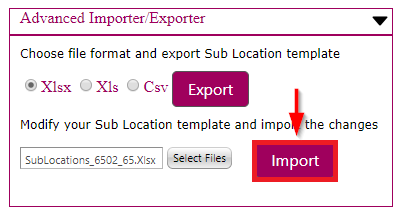
- The sub locations now exist in eQuip
Importing People
- Choose People
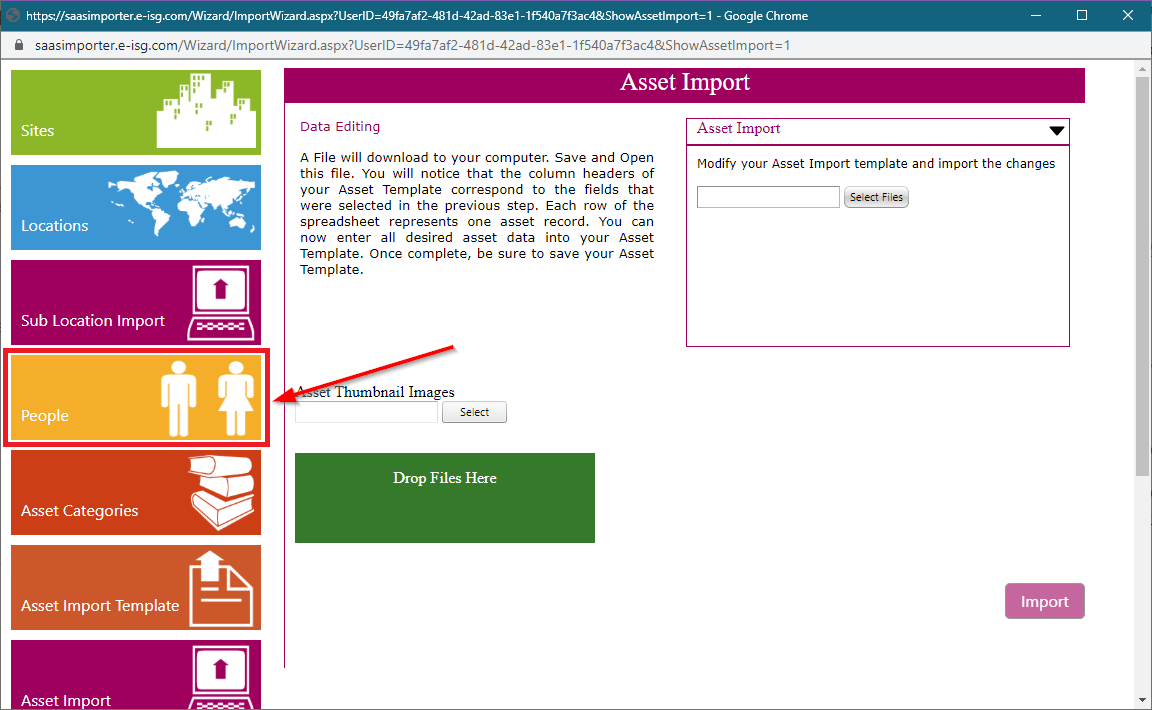
- Entering People manually
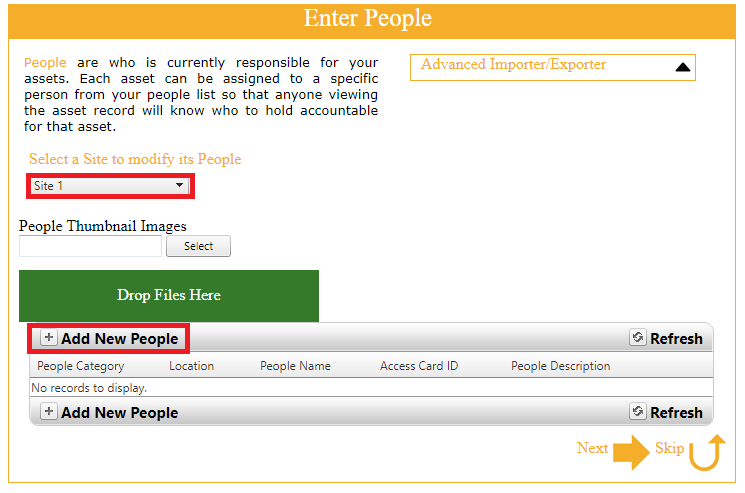
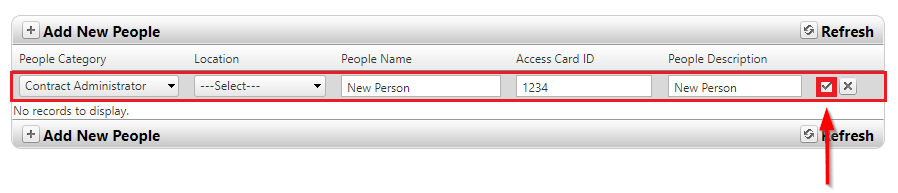
- Enter values for the following fields
-
- People Category (choose value from dropdown)
- Location (optional, choose value from dropdown)
- People Name (required, enter manually)
- Access Card ID (optional, enter manually)
- People Description (optional, enter manually)
- Choose Save
- The new person is now in eQuip
It is also possible to import people in bulk
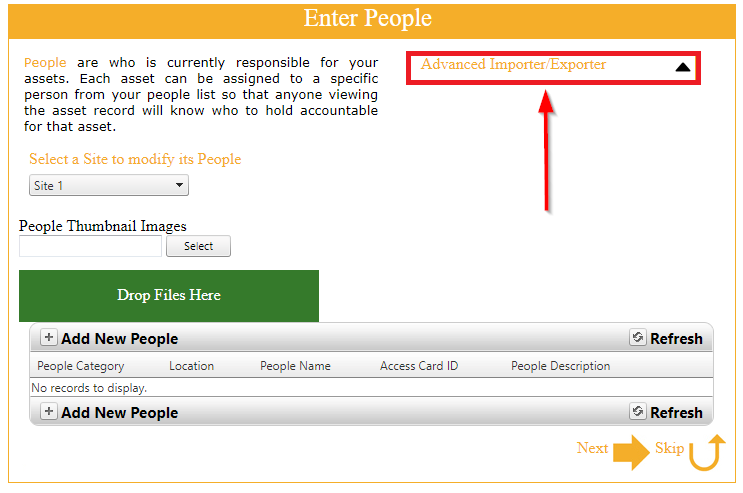
- Choose Advanced Importer/Exporter
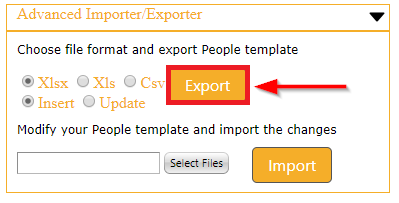
- Choose Export
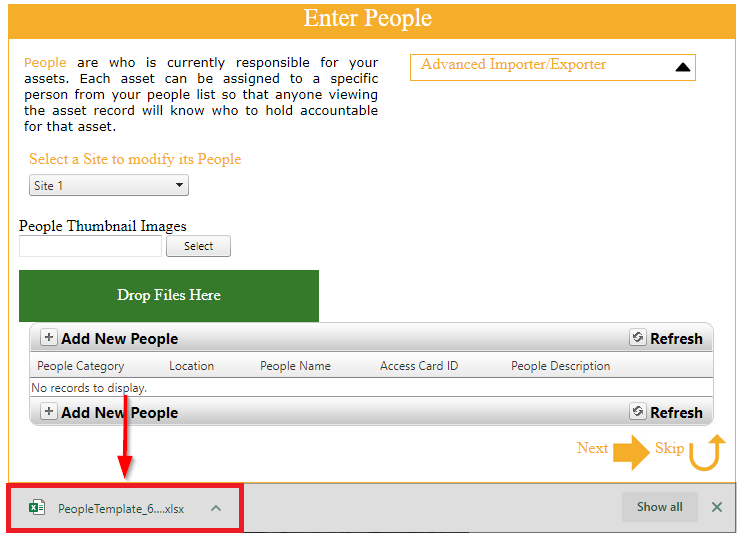
- Choose the link in the bottom left-hand corner of the window to download the template
- Enter values for the highlighted cells (at a minimum)
-
- Location and Description are optional

- Location and Description are optional
- Choose Select Files
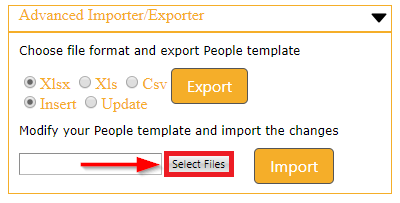
- Locate the import template in your Downloads folder
-
- Choose Open
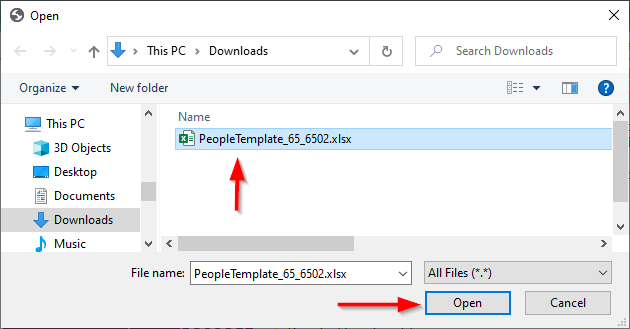
- Choose Open
- Choose Import
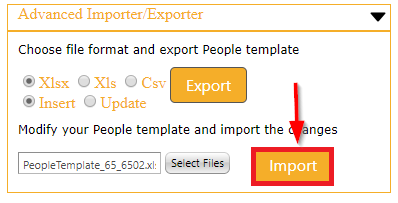
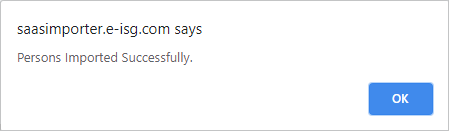
- You will receive a success message
-
- The new people now exist in eQuip
Importing Assets
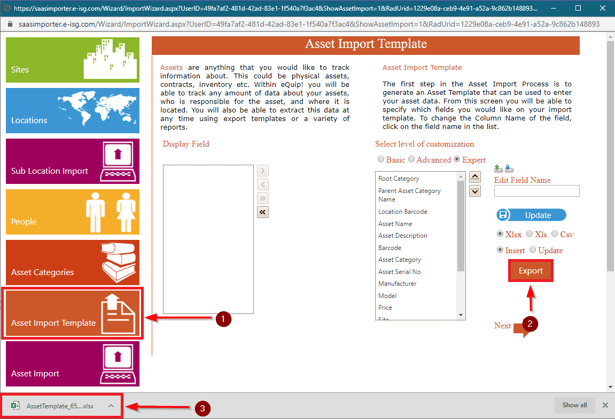
- Choose Asset Import Template
-
- The righthand column on the Asset Import Template screen contains the list of Column headers the Importer is looking for
- Selecting Basic/Advanced/Expert above the righthand column will display additional fields that can be added to the user’s list of columns
-
-
- Basic shows the Required fields from the system. Typically this will be blank as those fields are already on the list of column headers
- Advanced shows commonly used fields, a full listing of all fields on the Asset Summary and Inventory tabs
-
-
-
- Expert breaks down all the fields in the system based on the tabs. A dropdown will appear and the fields will populate based on the selected entry in the dropdown
-
-
- Choose Export
- Open the template by choosing the link in the lower-left corner
- Populate your asset information
-
-
- Save and close the template

- Save and close the template
-
- Choose Asset Import
-
- Choose Select Files
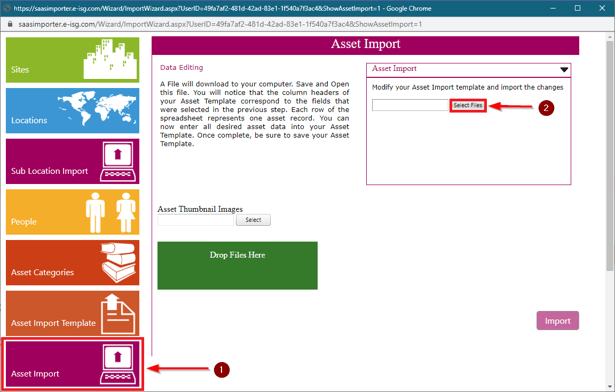
- Choose Select Files
- Locate the file
-
- Choose Open
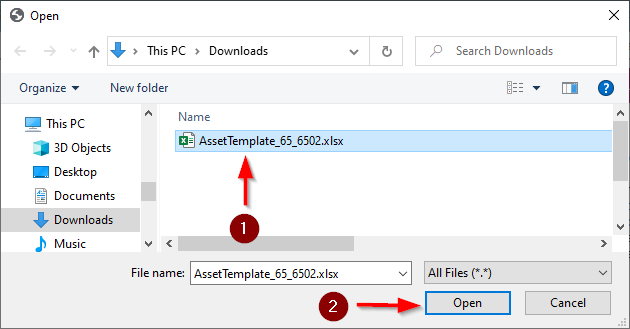
- Choose Open
- Choose Import
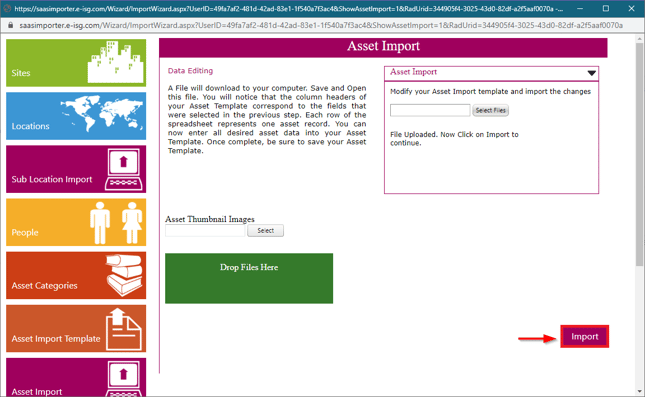
- After some time you will receive a success message
- Your assets are now in eQuip

Rejection Files and Common Error Types
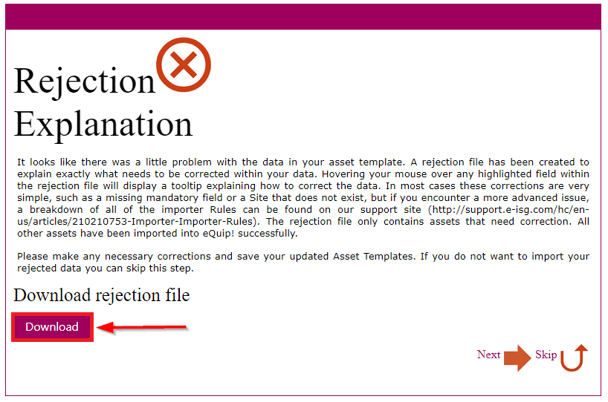
- If eQuip finds an error with the imported spreadsheet, it will create a Rejection File
-
- The Rejection File will only contain assets that were rejected. Assets with no errors will be imported from the original file.
- Chose Download to download the rejection file
- The most common mistakes made during the import process include:
-
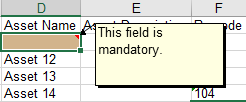
- Missing required fields
-
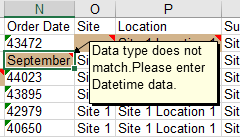
- Date formatting
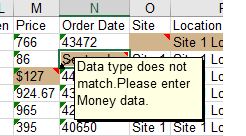
- $ in Price field
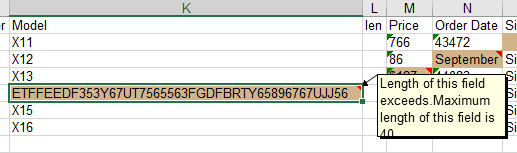
- Max field length
- Duplicated Barcode
- A missing required field will result in the following comment on the affected cell(s):
- A Date formatting issue will result in the following comment on the affected cell(s):
- Including a $ in a Price will result in this comment on the affected cell(s):
- A case where the value in a cell exceeds an asset field’s maximum character length results in this message:
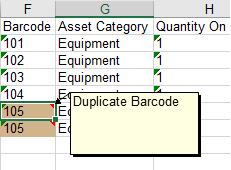
A duplicate Barcode will result in "Duplicate Barcode" comment on the affected cells.