![eQuip Logo on White-1.png]](https://help.assetworksusa.com/hs-fs/hubfs/eQuip%20Logo%20on%20White-1.png?height=50&name=eQuip%20Logo%20on%20White-1.png)
How To Search For An Asset In eQuip Mobile
1) Open the eQuip Mobile app.
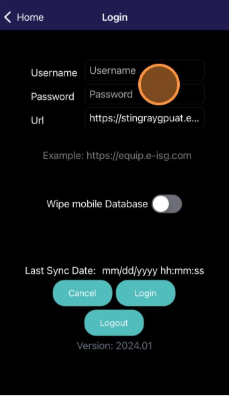
2) Log in using your eQuip username and password.
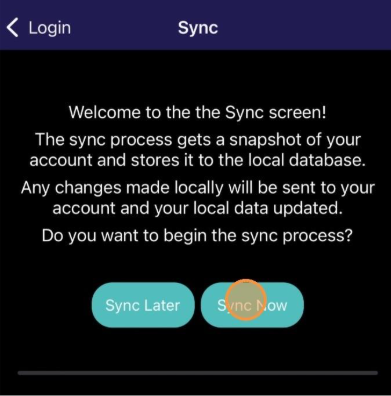
3) If prompted, tap Sync Now and wait for the sync to complete.
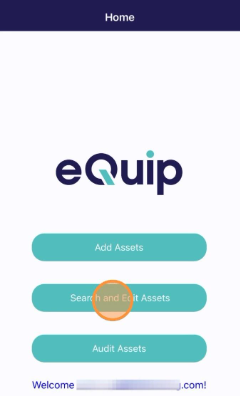
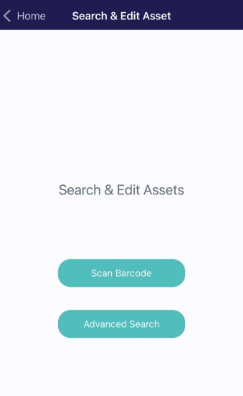
4) From the home screen, tap Search and Edit Assets.
5)Choose how you want to search:
- Tap Scan Barcode to search by barcode, or
- Tap Advanced Search to search using asset details.
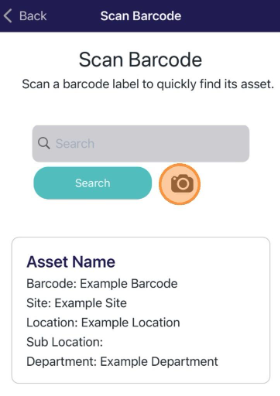
6) If using Scan Barcode, type the barcode in the search field or tap the camera icon to scan the barcode.
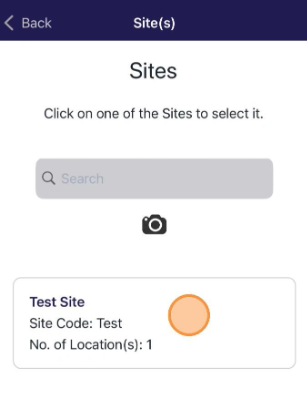
7) If using Advanced Search, select a site.
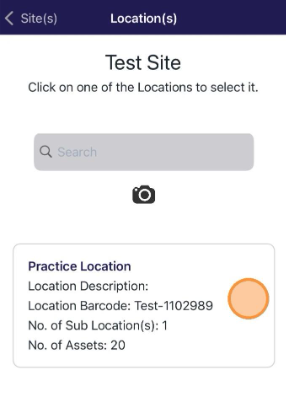
8) Select a location.
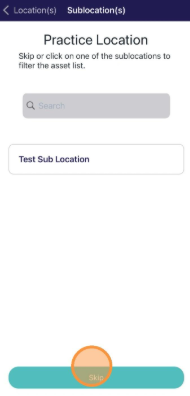
9) Continue on additional filters if needed, or tap Skip to view the asset list.
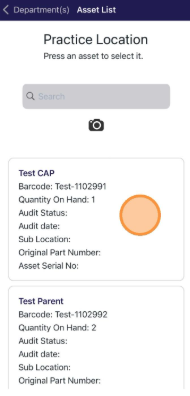
10) Tap an asset from the list to view its details.