![eQuip Logo on White-1.png]](https://help.assetworksusa.com/hs-fs/hubfs/eQuip%20Logo%20on%20White-1.png?height=50&name=eQuip%20Logo%20on%20White-1.png)
How to Import Assets and Update Inventory
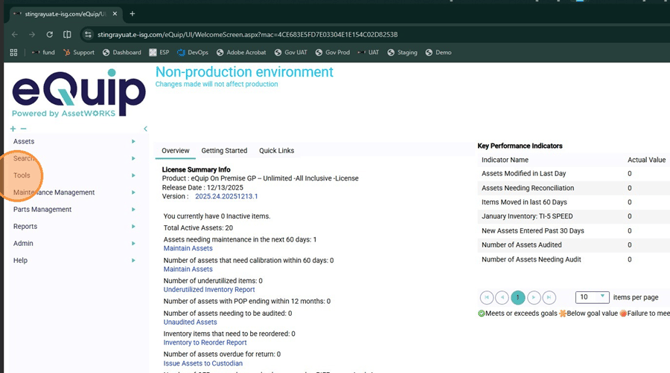
- Click “Tools.”
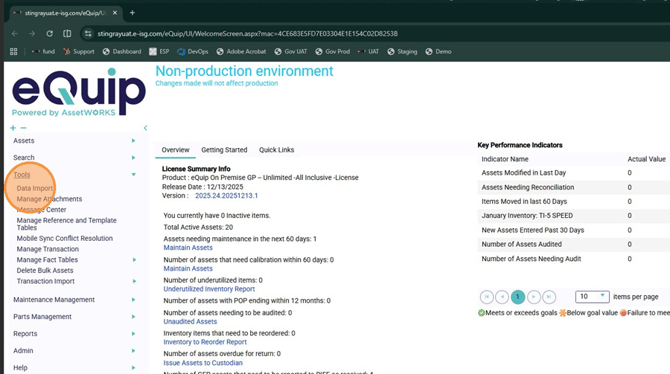
- Click “Data Import.”
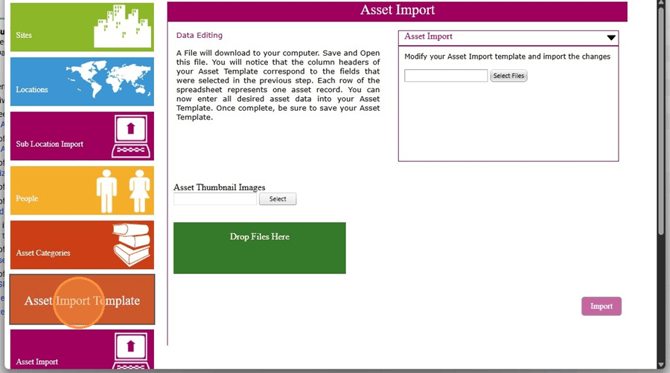
If an asset import template is needed, continue with the next steps. If not, skip to Step 9. - Click “Asset Import Template.”
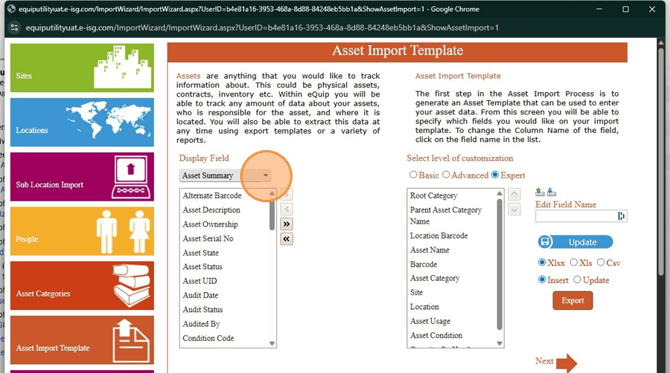
- Select the level of customization for the import template. Basic shows required system fields. Advanced shows commonly used fields. Expert displays all available fields grouped by tab.
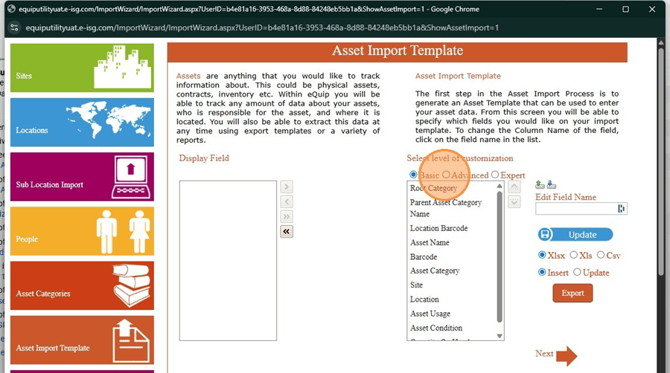
- The field list updates based on the selected tab.
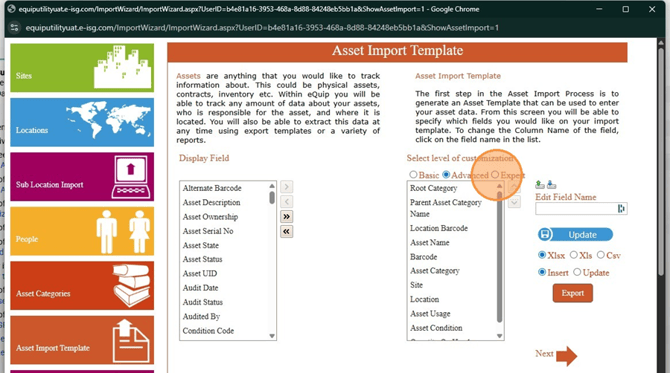
- Select the fields to include in the import template. The right-hand column shows the fields the importer expects in the spreadsheet.
- Select the import mode based on how the template will be used. Insert creates a template for adding new asset records. Update exports existing asset records so you can edit them and import the updates back into the system.
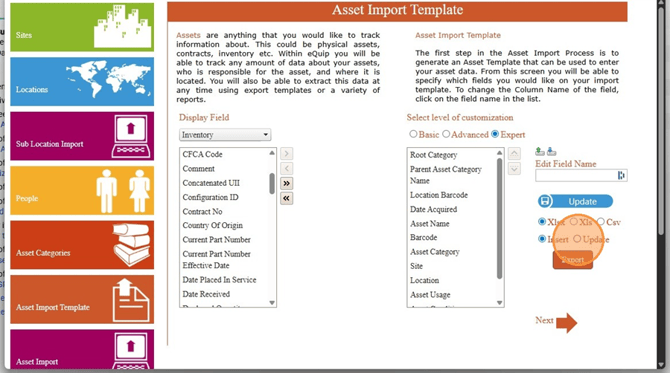
- Choose the file format and click “Export.” This downloads the asset import template.
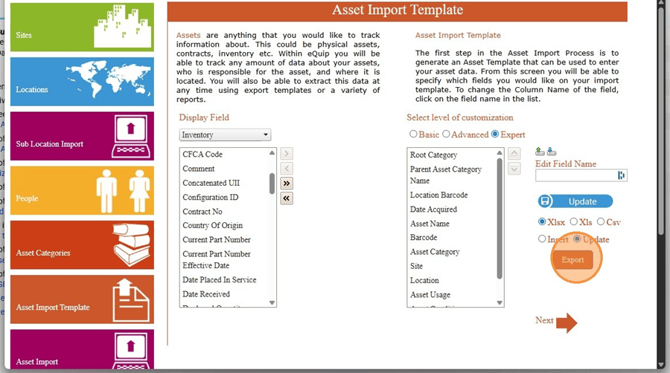
Do not rename column headers. Columns may be reordered as needed.
- After completing the exported template, click “Asset Import” to upload it.
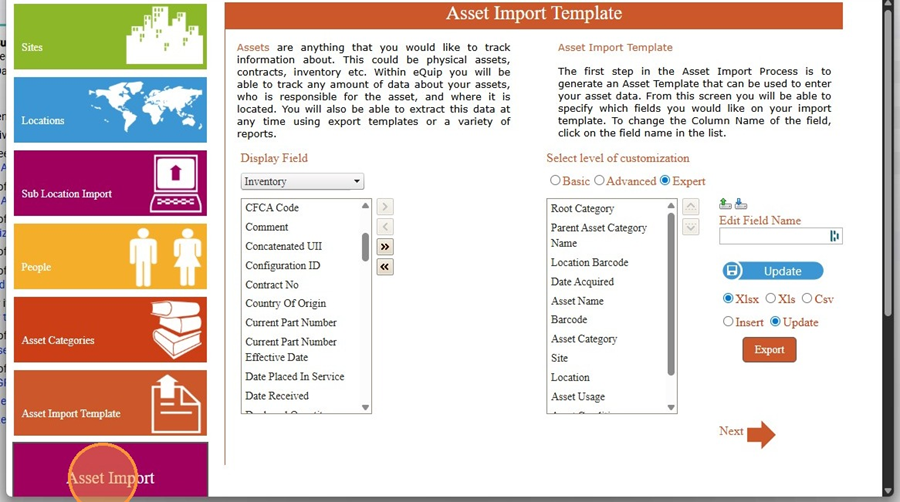
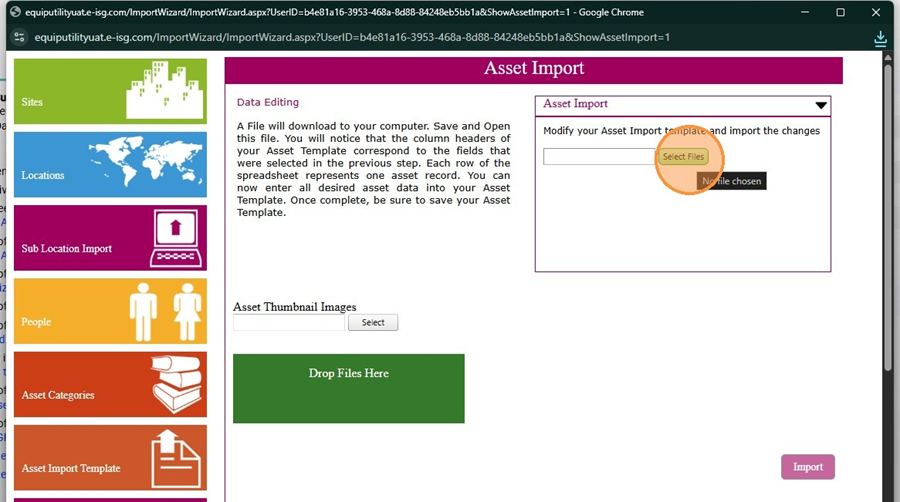
If an existing asset import template is already available, click Asset Import and upload that file. Exporting a new template is not required. - Click “Select Files” and choose the completed template. If the file upload area is collapsed, click the small triangle to expand the section.
- Click “Import.”
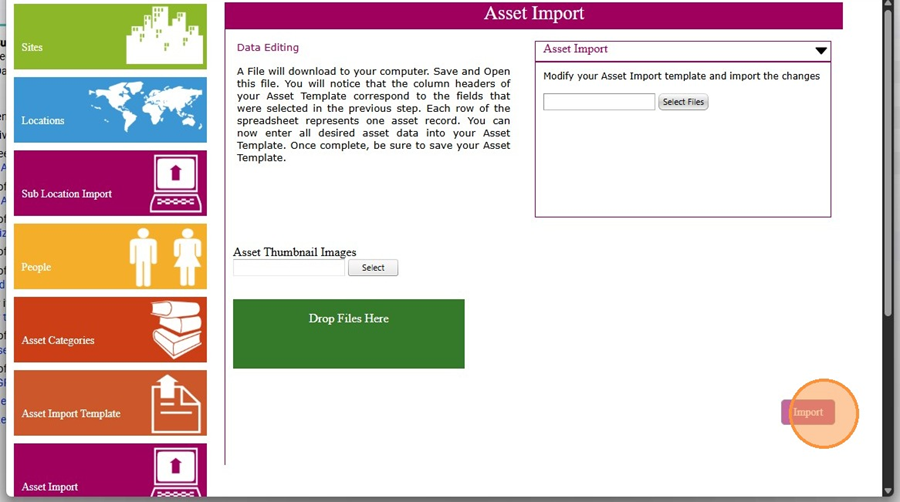
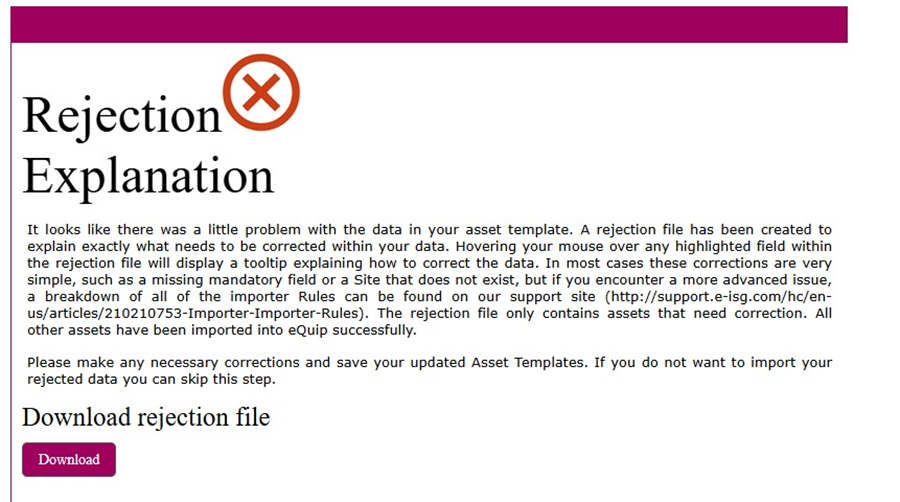
- If errors are found, review the rejection message and download the rejection file to correct and re-import failed records.
- Review the success message to confirm the import completed. Imported assets are now available in eQuip.